Ping Monitors
Ping monitors send ICMP echo requests to a hostname or IP address, like the ping command in your terminal, and mark the host down when it stops replying or replies too slowly. They suit physical servers, routers, or any device connected to the internet.
As with other monitor types, when a ping monitor detects a problem, your team can investigate and resolve it and optionally reflect the issue on your status page.
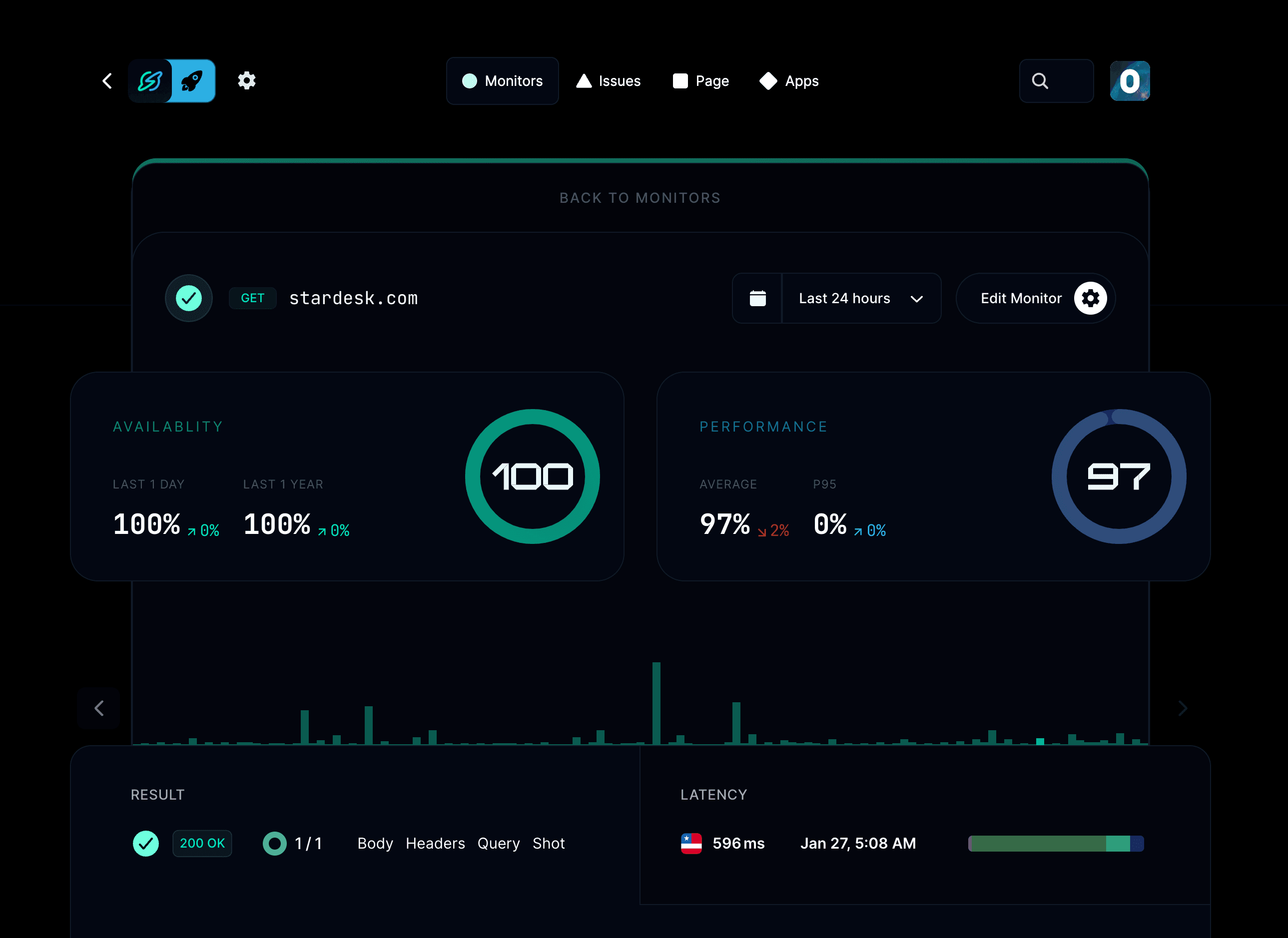
What can a ping monitor do?
- Test network reachability for any host or IP address.
- Monitor uptime and packet loss from multiple locations.
- Detect outages or degraded performance within seconds.
- Receive alerts through Slack, email, SMS, or phone calls when a host becomes unreachable.
- Display uptime on your public status page to keep users informed.
How do I add a ping monitor?
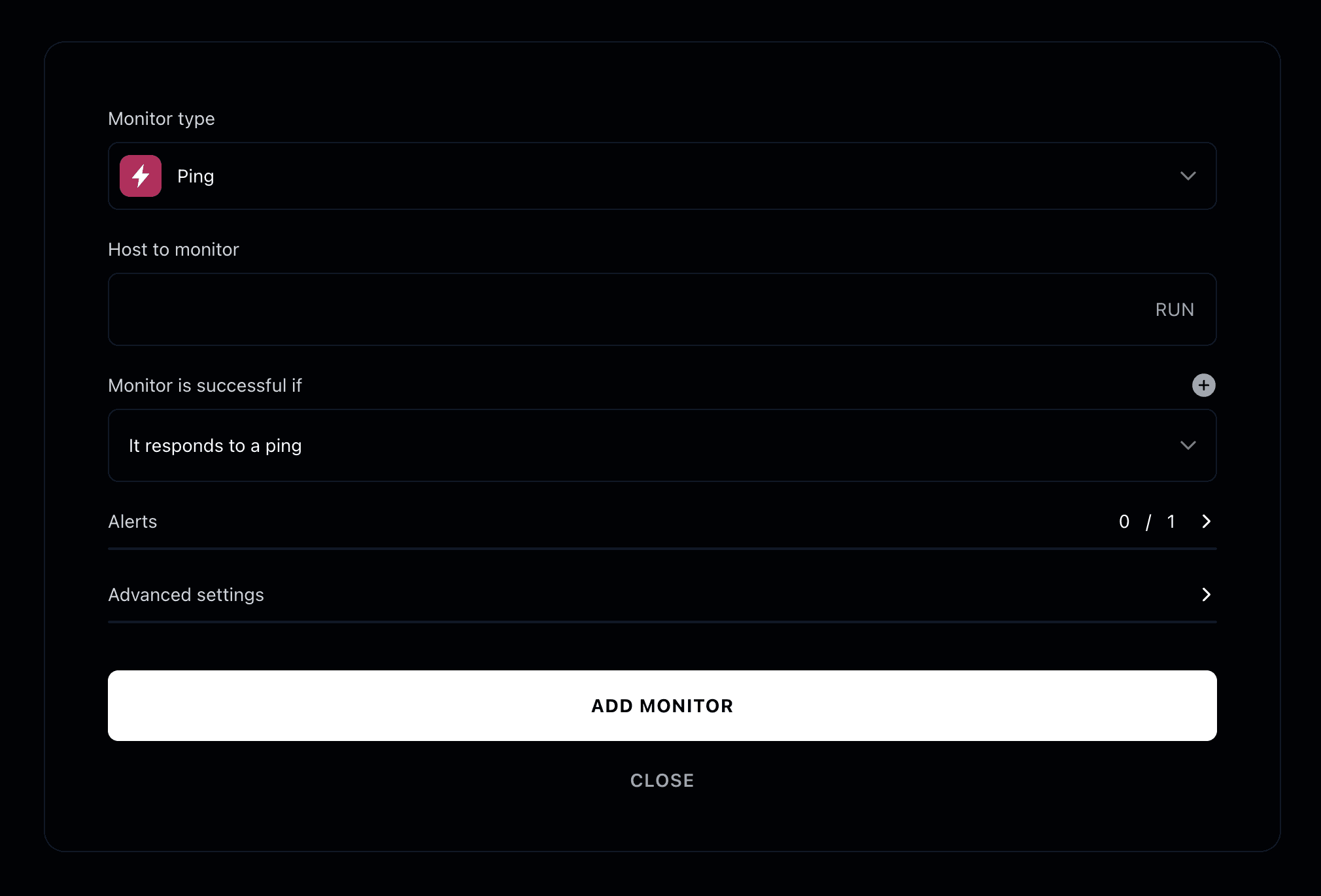
Open your project → Monitors → Add monitor, choose Ping, and enter the hostname or IP address to check.
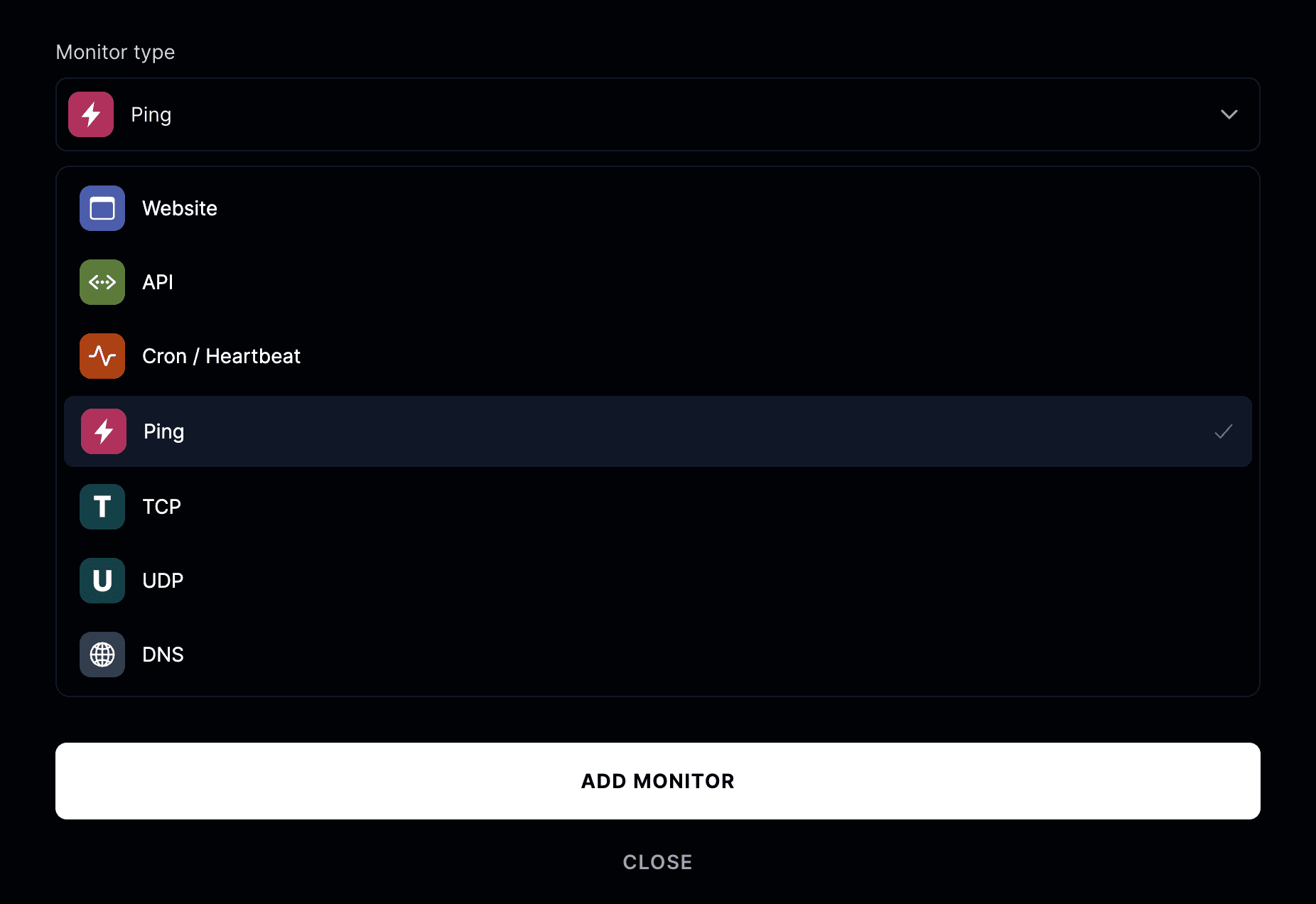
Choose monitor type
Select Ping from the available monitor types.
Enter the hostname or IP address you want to check.
For example:
8.8.8.8 or server.yourcompany.com
How does a ping monitor work?
Ping monitors send ICMP echo requests to your target at regular intervals.
The monitor succeeds if a reply is received within the allowed time.
If the server doesn’t respond or responds too slowly, the monitor is marked as down.
Advanced options
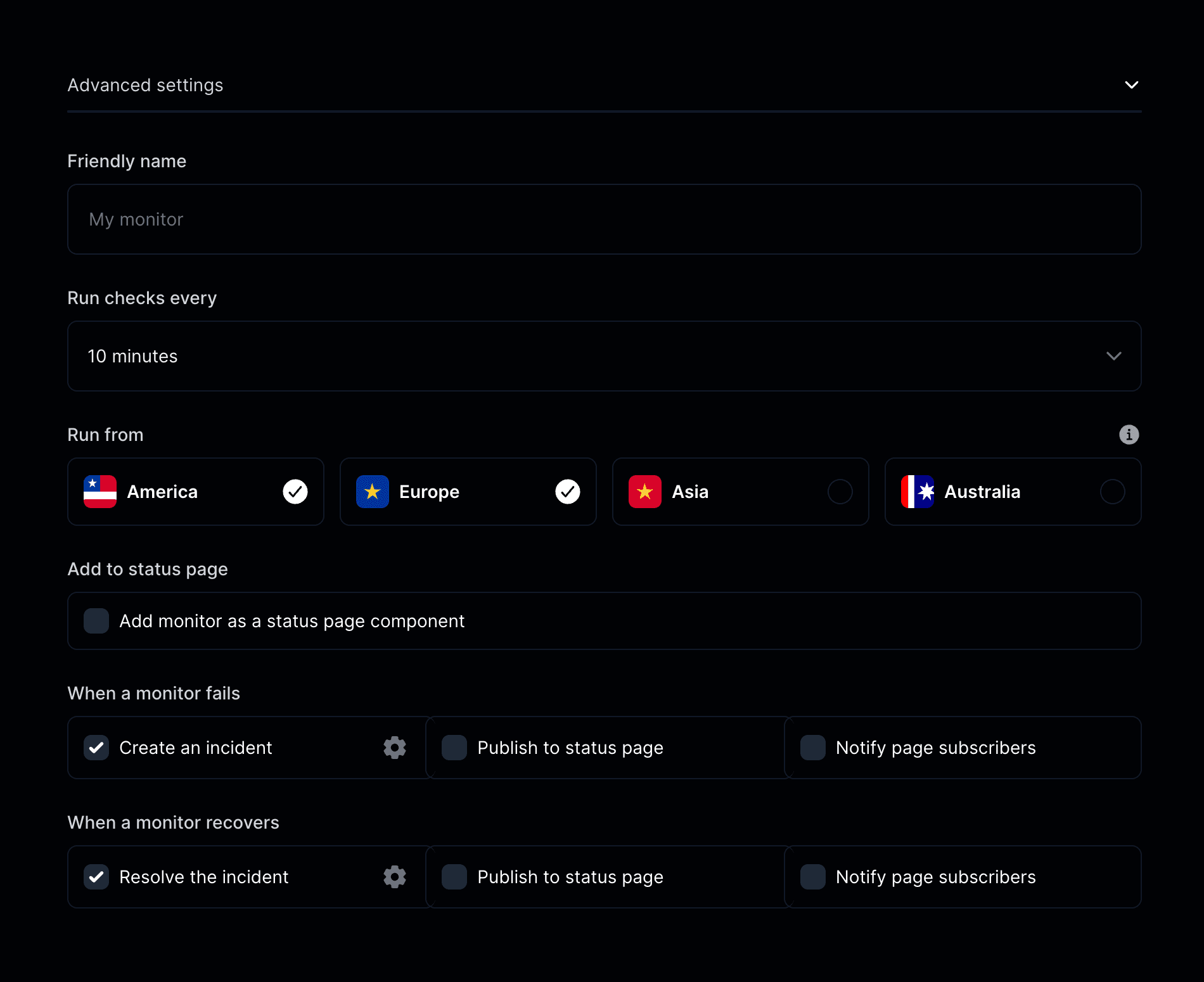
- Friendly name: Add a descriptive name for your host.
- Run checks every: Choose how often to run the monitor. For more frequent checks, you can upgrade to the Pro plan.
- Run from: Select testing regions (United States, Canada, Europe, Asia).
- Add to status page: Show this monitor’s uptime on your public status page.
- When a monitor fails: Initiate an incident, notify subscribers, or publish to your status page.
- When a monitor recovers: Resolve incidents and automatically update your status page.